Input Components
Enhanced input components with advanced functionality for your Streamlit applications.
Split Button
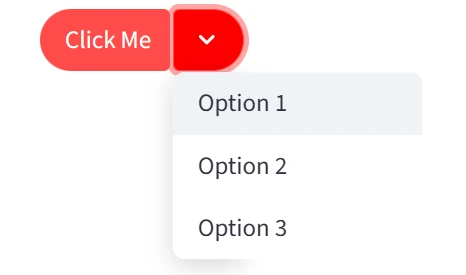
A button with a dropdown menu for multiple actions.
Description
A button with a dropdown menu for multiple actions, combining a primary action with related secondary options.
Usage Pattern
Use this component when you have a primary action with related secondary options. Perfect for save/submit buttons with variations (Save Draft, Save & Close), export buttons with multiple formats, or any action where users frequently need to choose between similar operations.
Basic Example
import st_yled

st_yled.init()

st_yled.split_button(
    label="Save",
    options=["Save Draft", "Save & Close", "Save & New"],
    icon=":material/save:",
    color="#FFFFFF",
    background_color="#1976D2",
    radius="20px",
    key="split-button-1",
)
Quick Start
Parameters
label(str): Text displayed on the main buttonoptions(List[str]): List of dropdown menu optionsicon(str, optional): Material icon for the buttoncolor(str, optional): Text colorbackground_color(str, optional): Button background colorradius(int | str): Border radius (default: "20px")key(str, optional): Unique key for the component
Usage Examples
Export with Multiple Formats:
action = st_yled.split_button(
    label="Export",
    options=["Export as PDF", "Export as CSV", "Export as Excel"],
    icon=":material/download:",
    background_color="#4CAF50",
    key="export-button"
)

if action == "Export as PDF":
    # Handle PDF export
    pass
elif action == "Export as CSV":
    # Handle CSV export
    pass
Save with Variations:
save_action = st_yled.split_button(
    label="Save",
    options=["Save Draft", "Save & Continue", "Save & Close"],
    icon=":material/save:",
    background_color="#2196F3",
    key="save-button"
)

if save_action:
    st.success(f"Action: {save_action}")
Next Steps
Explore more component categories:
- Card Components - Beautiful card layouts
- Layout Components - Advanced layout controls
- Navigation Components - Routing and navigation
st_yled with ❤️ from EVOBYTE